
Signing guide
Signing with several people and with a digital signature (PAdES)
Everything happens in your browser: neither the document, nor your signature, nor your certificate goes through a server. To get the PDF to each signer, you send it yourself, by email, WhatsApp or however you like.
1. Signing with a digital signature (PAdES)
PAdES is the European standard for digital signatures in PDF. The signature lives inside the file and seals its content: if anyone changes something later, InkognitoPDF, Adobe Acrobat and other readers detect it. A “Visual only” signature, by contrast, is an image on the page and protects nothing.
- Open the PDF in InkognitoPDF and press “Sign”.
- In “1 · Place”, press “Create” to make your signature: drawn, typed or from a photo. Then press “Place signature” and click the page where it goes. If needed, add your initials and the date too.
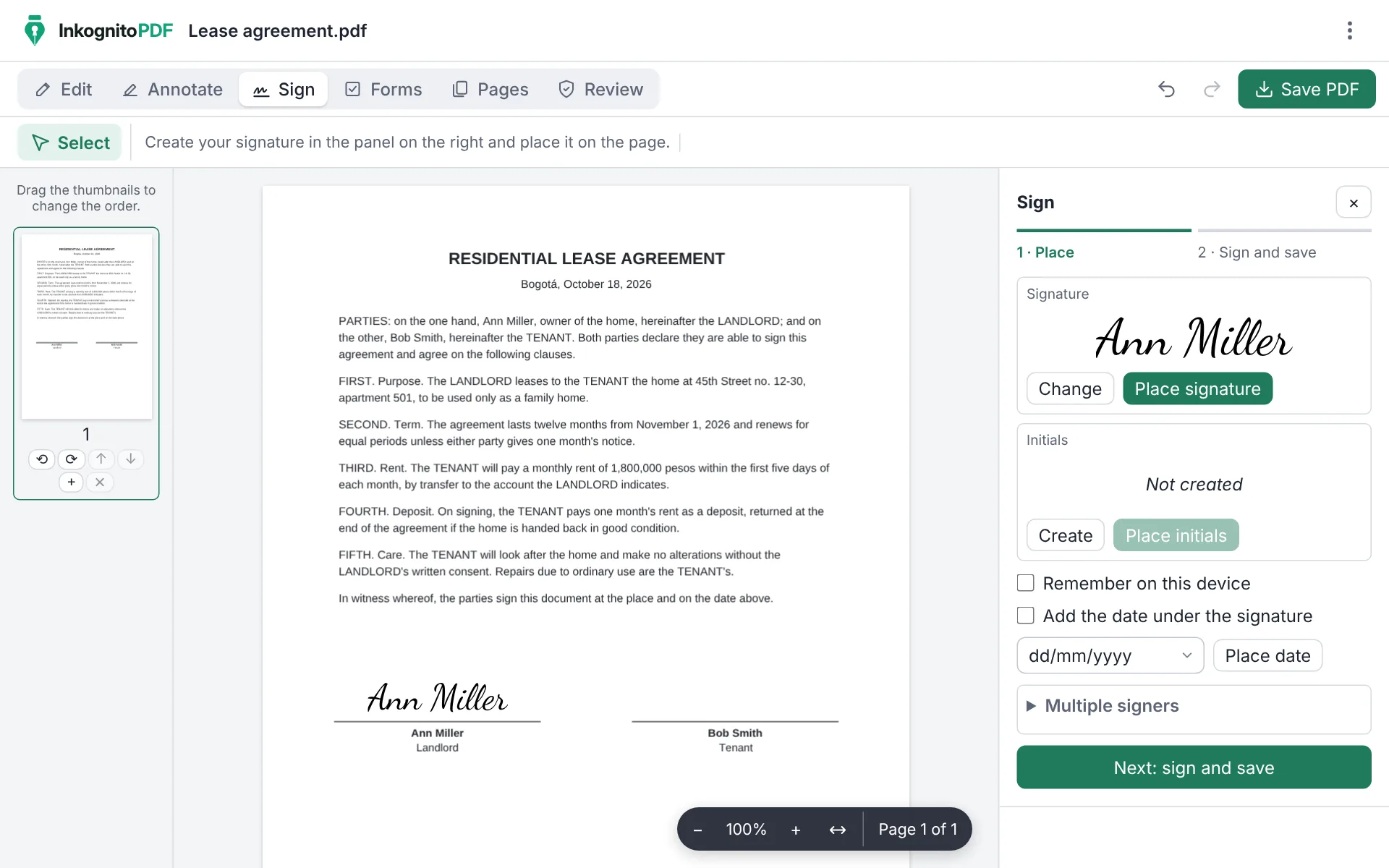
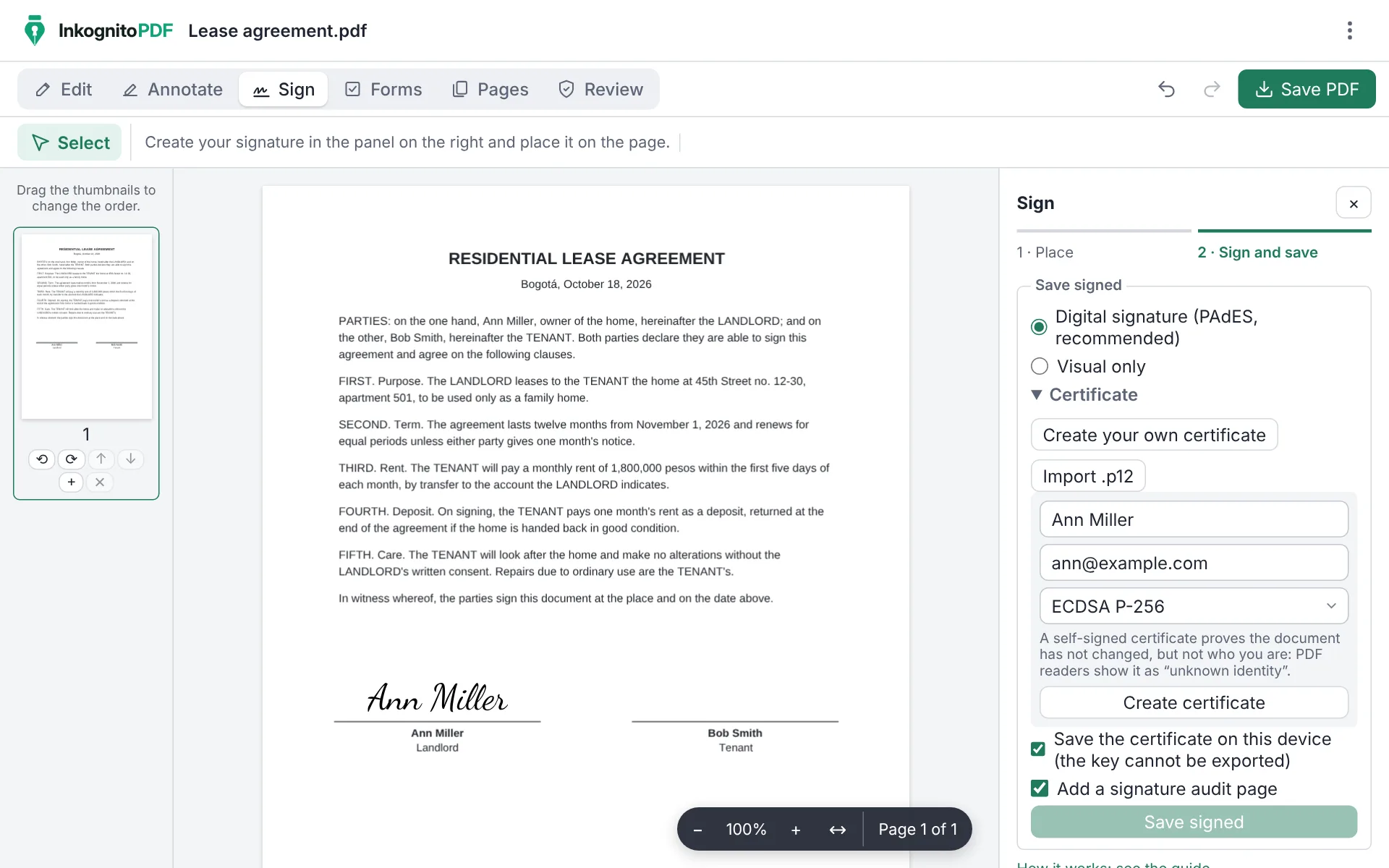
- Press “Next: sign and save” and keep “Digital signature (PAdES, recommended)” selected.
-
Under “Certificate”, choose what you sign with:
- “Import .p12”: if you have a signing certificate issued by an authority (for example, your national electronic ID or a qualified signature from your country), choose the .p12 or .pfx file and type its password. This is the option that identifies who signs.
- “Create your own certificate”: type your name and, if you like, your email, and press “Create certificate”. It proves the document did not change, but not who you are: readers show it as “unknown identity”.
The certificate is kept only in this browser and its key cannot be exported. Next time it is already selected; “Forget” deletes it.
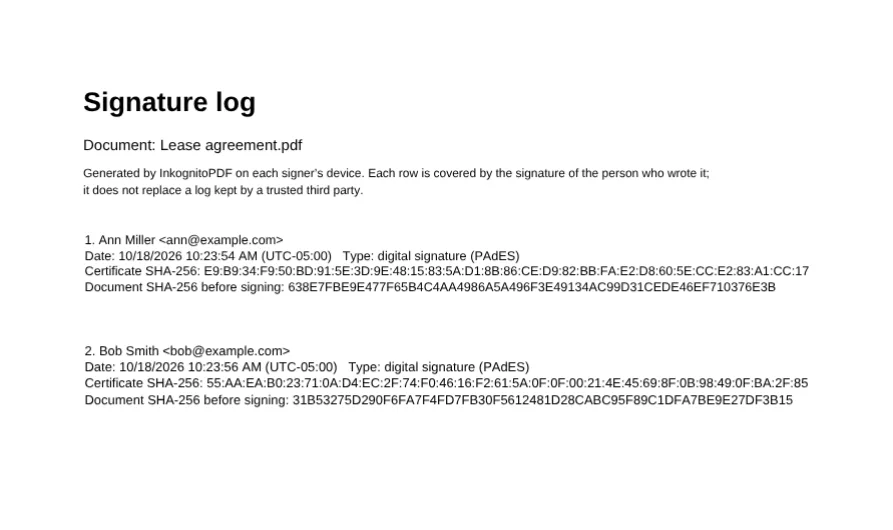
- If you like, tick “Add a signature audit page”: a last page is added to the PDF with who signed, when, and the document's fingerprint.
- Press “Save signed”. A copy with “(signed)” in its name is downloaded; the original file does not change.
A PDF that is already signed is not edited or saved again from the editor: the file would be rewritten and its signatures would stop being valid (the app warns you first). If more people have to sign, prepare it with “Multiple signers”: each signature is added without breaking the earlier ones.
2. Several people sign the same PDF
Whoever sends the document decides who signs, in which order and where. That plan is kept inside the PDF. Each person opens the file in InkognitoPDF, signs only their own fields and passes it on to the next one. Nobody needs an account. While signatures are missing, the document cannot be edited in the app, and the first signature certifies it: Acrobat and other readers flag any later change other than signing, filling fields or adding annotations.
- You prepare it
- Ann signs
- Bob signs
- Signed by everyone
Preparing the document (the sender)
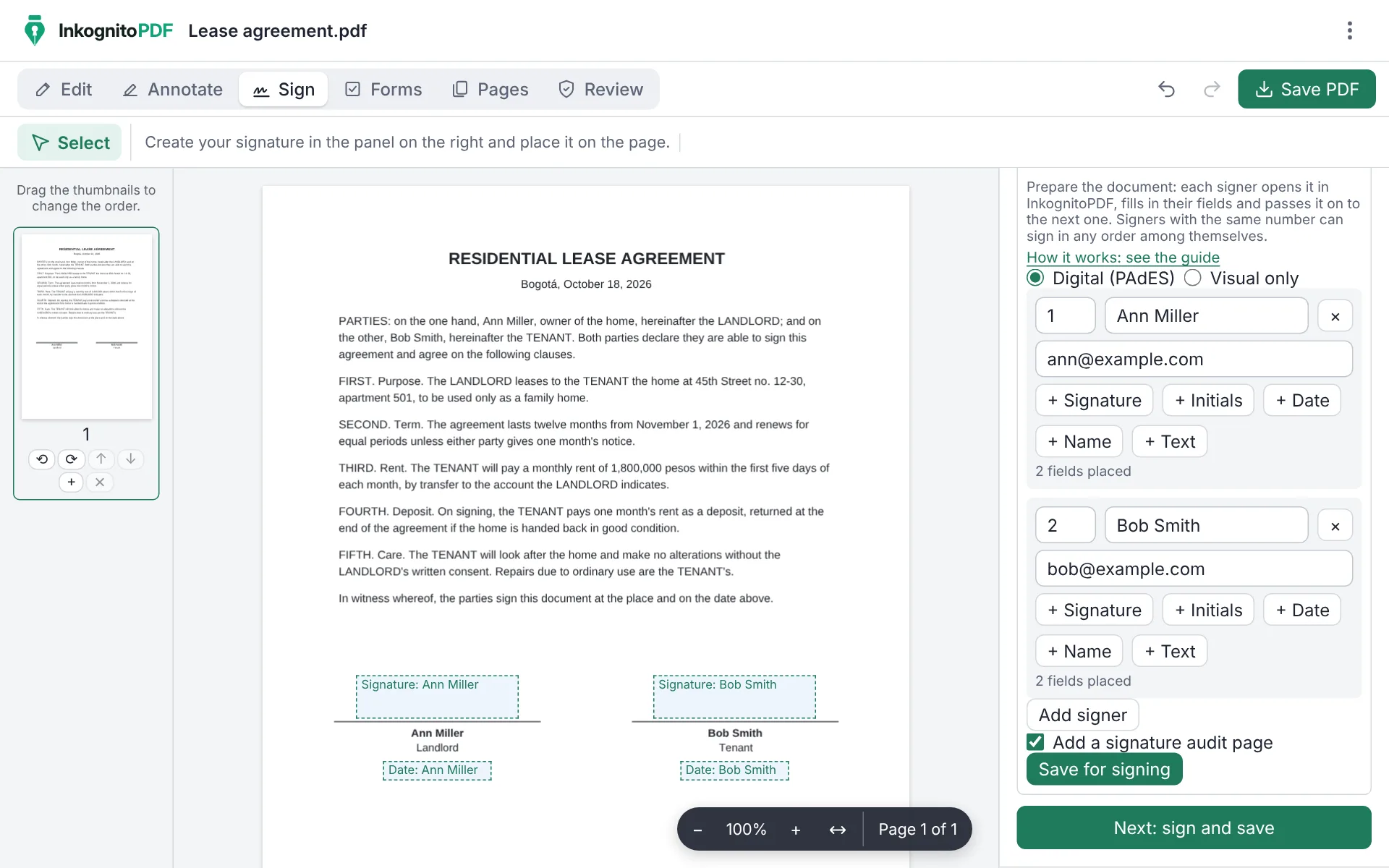
- Open the PDF, press “Sign” and expand “Multiple signers”.
- For the signature type, keep “Digital (PAdES)”. With “Visual only” the app keeps the order, but the document is left unprotected: anyone could change it unnoticed.
- Press “Add signer” for each person and type their name (the email is optional). The number on the left is the order: people with the same number can sign in any order among themselves.
- Under each signer, press “+ Signature” and click the page where they must sign. The same with “+ Initials”, “+ Date”, “+ Name” or “+ Text”. The date and the name fill in by themselves when signing. With digital signatures, each person needs at least one signature field.
- Keep “Add a signature audit page” ticked if you want a last page with each signature, its date and its certificate.
- Press “Save for signing”. The PDF is downloaded with “(to sign)” in its name. Send it to whoever signs first.
Signing (each signer)
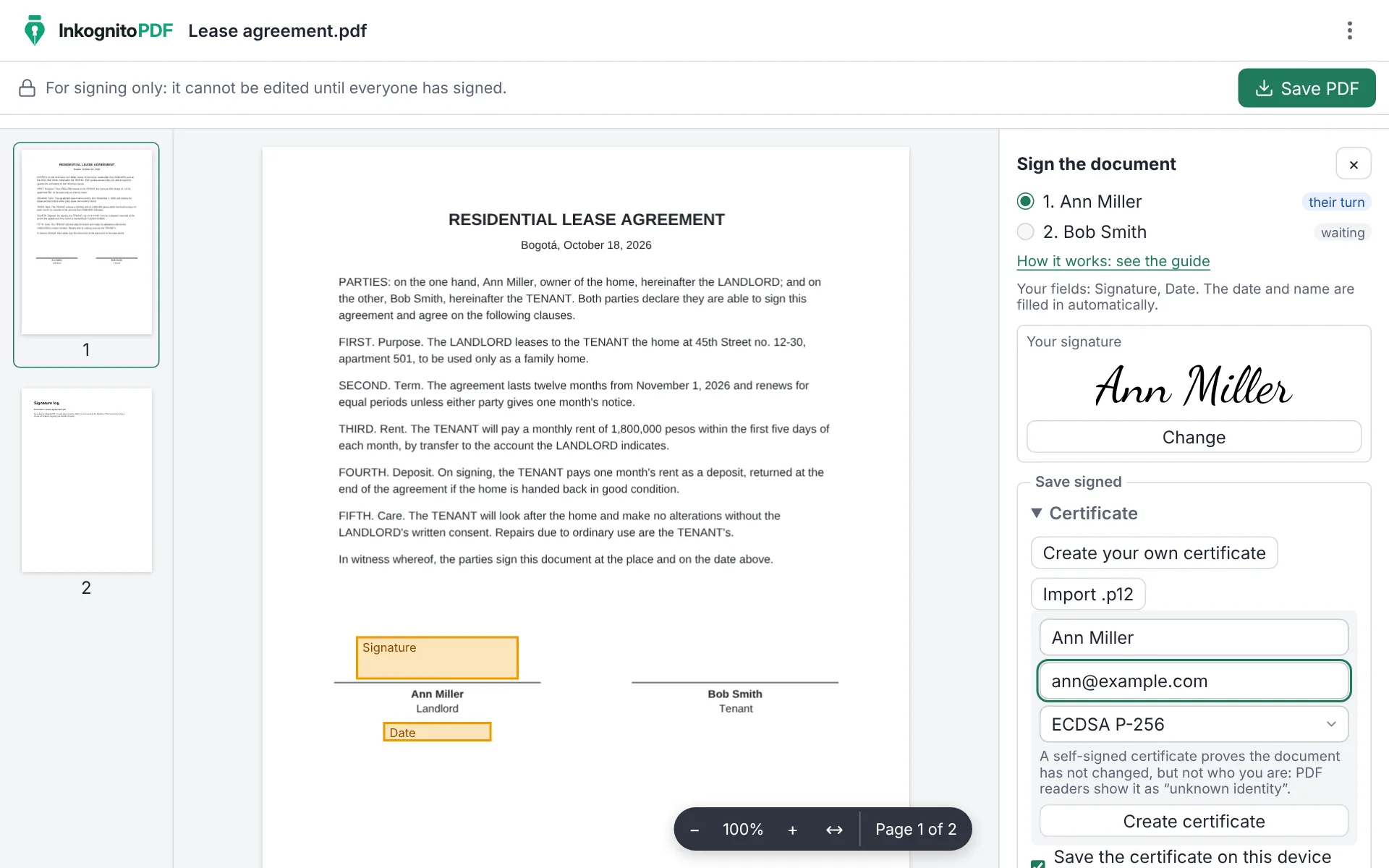
- Open the PDF you were sent in InkognitoPDF (inkognitopdf.com/app, “Open PDF”). It opens in signing mode: it cannot be edited, and the “Sign the document” panel is already open for whoever’s turn it is. On a phone, press “Sign as…” in the notice at the top.
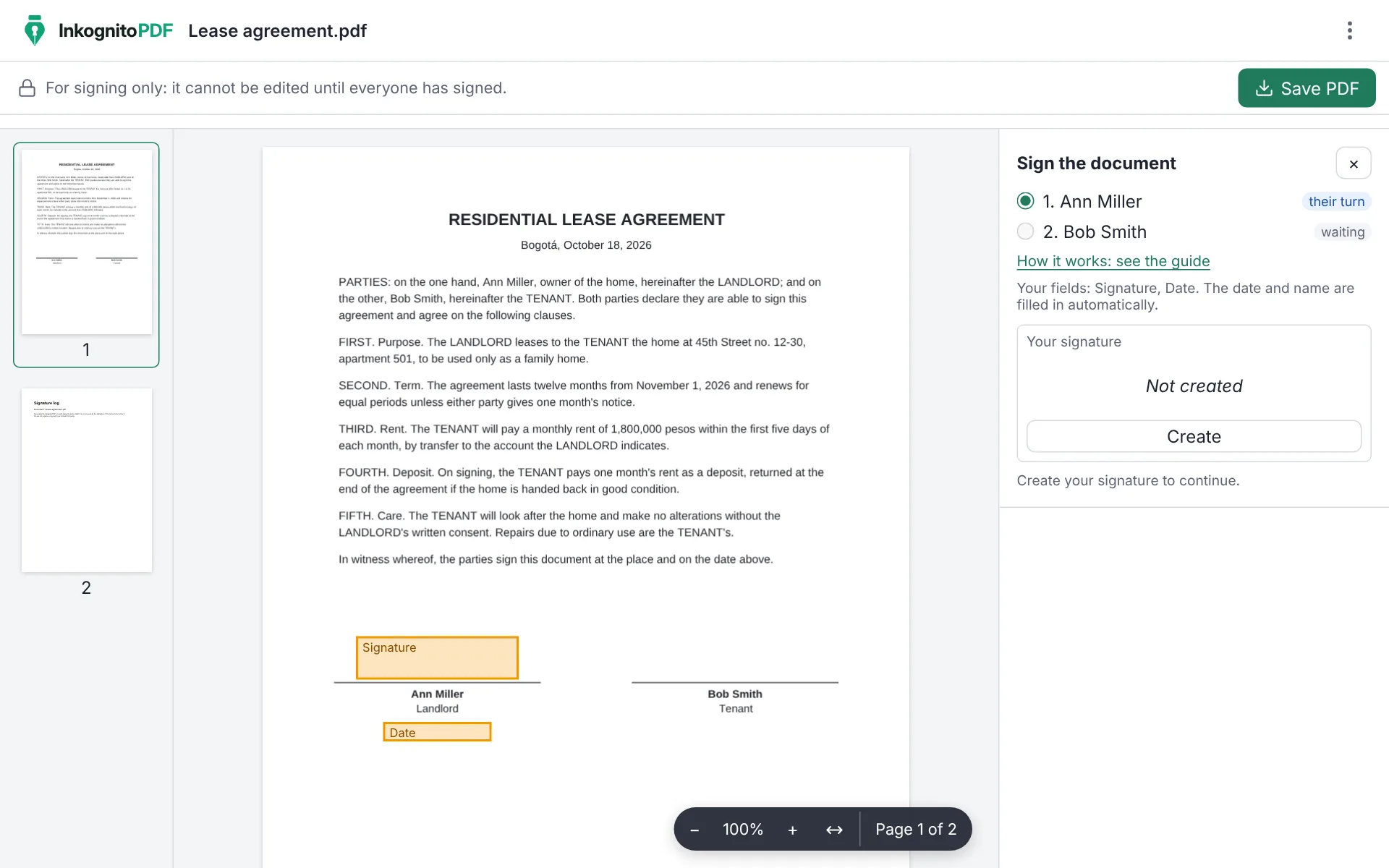
- Check that your name is selected. Only whoever's turn it is can sign: the others show “waiting” or “signed”. Your fields are outlined on the page.
- Press “Create” to make your signature (and your initials, if asked for) and fill in the texts that are yours.
- Choose or create your certificate, as in part 1, and press “Save signed”. A copy with “(signed)” in its name is downloaded, and the app tells you who to send it to. If an earlier signature is no longer valid or the document changed after it, the app does not let you sign and says why.
When everyone has signed
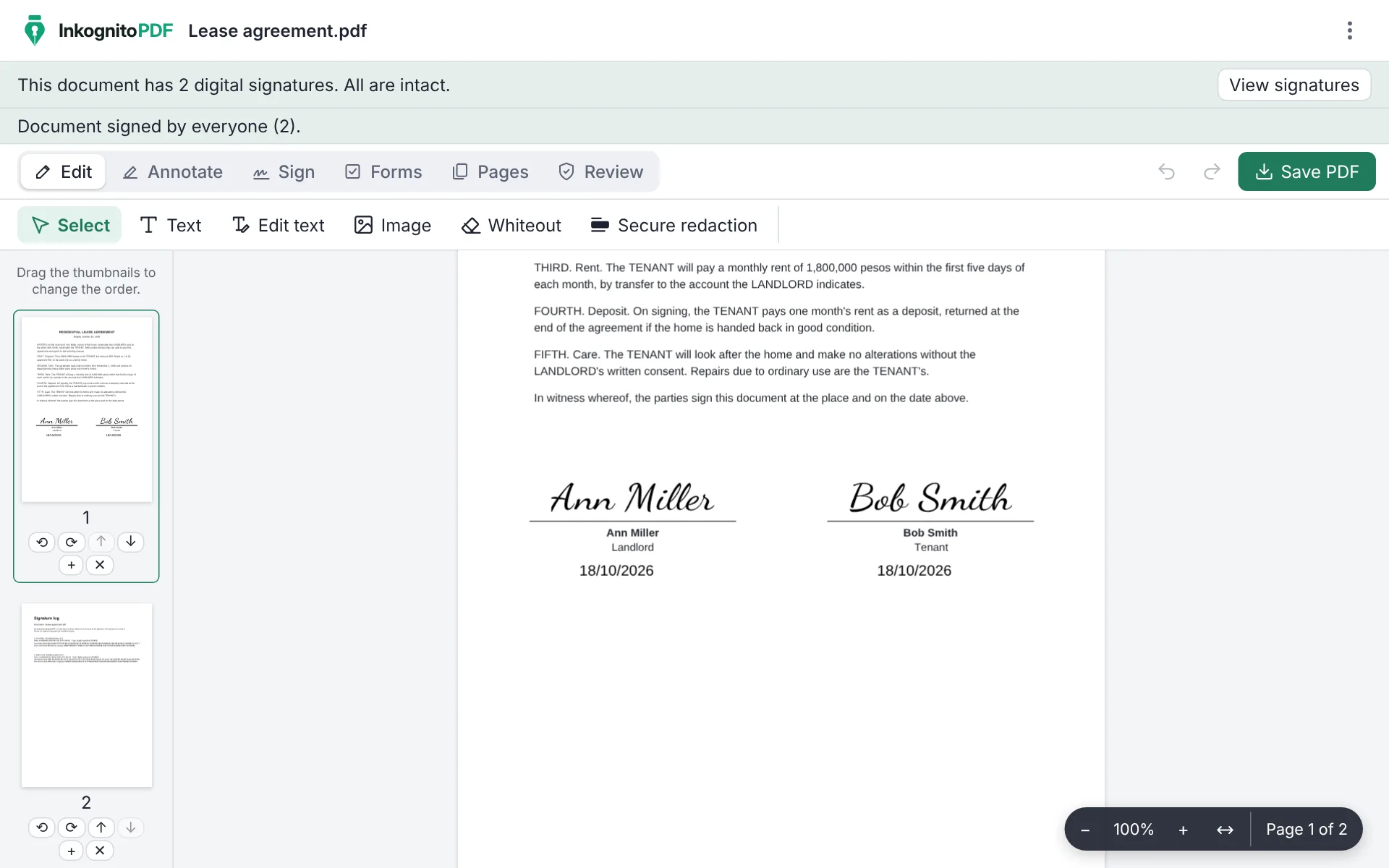
When the last file is opened, the app shows “Document signed by everyone” and how many digital signatures it has. Each signature covers the document as it was when signed, so they are checked one by one.
3. Checking the signatures
When you open a signed PDF, press “View signatures”. For each signature you see:
- Whether it is intact: “Signature intact” means the signed content did not change.
- What happened afterwards: “Covers the whole document”, “Other signatures, fields or annotations were added later…” (normal with several signers) or “The document was modified after this signature” (someone changed the content).
- The certificate: self-signed, trusted or not verified, with its holder, issuer, validity and fingerprint.
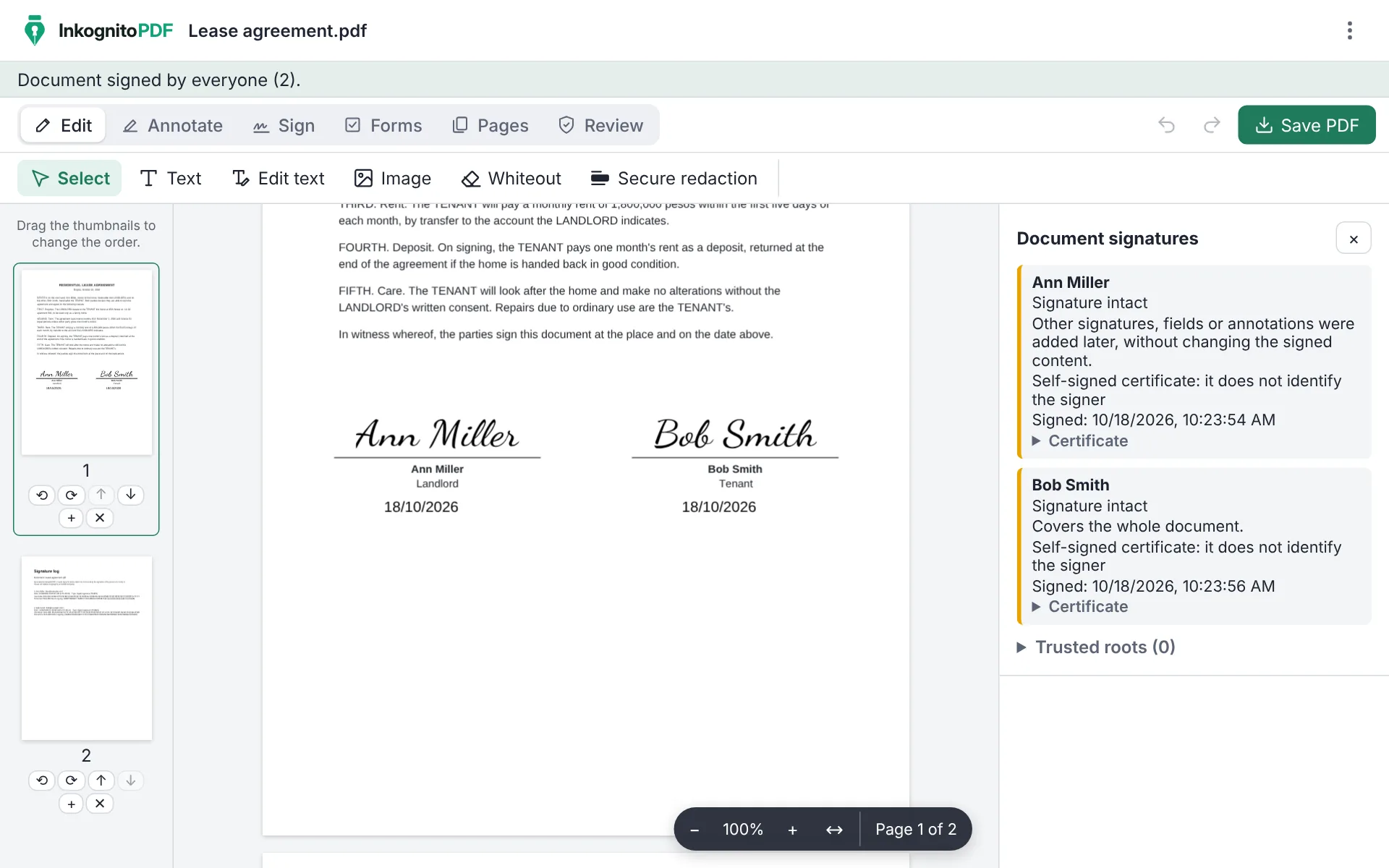
InkognitoPDF does not ship a list of authorities. For a certificate to show as “trusted”, import its authority's root certificate (.cer, .crt or .pem) under “Trusted roots”. Offline, the app does not check whether a certificate was revoked.
The signatures can also be checked in Adobe Acrobat Reader and other readers with digital signatures.
4. Questions
Are digital signatures legally valid?
InkognitoPDF creates standard PAdES signatures. Their legal validity depends on the certificate you use and the laws of your country: a certificate issued by a recognized authority identifies the signer; your own one only proves the document did not change.
Do signers need an account or to install anything?
No. Opening inkognitopdf.com/app in the browser is enough, on a computer or a phone. If they like, they can install it as an app.
Can I sign on a phone?
Yes, with the same steps. On a phone the panel closes while you place the signature or the fields on the page, and comes back when you press “Sign”.
My .p12 file gives an old encryption error
Some .p12 files use 3DES or RC2, which browsers do not support. Export it again with AES: on Windows, from the certificate manager, choosing AES256-SHA256 encryption; or with “openssl pkcs12 -export” from OpenSSL 3.
What happens if someone changes the PDF between two signatures?
The earlier signatures give it away: under “View signatures” they show “The document was modified after this signature”.
Can someone sign out of turn?
Not in InkognitoPDF: only whoever's turn it is can choose their name. Other programs do not know the signing plan, so send the file only to whoever is next.
Are the document or my certificate uploaded anywhere?
No. Everything happens on your device. The certificate is kept in this browser, with a key that cannot be exported, and “Forget” deletes it.